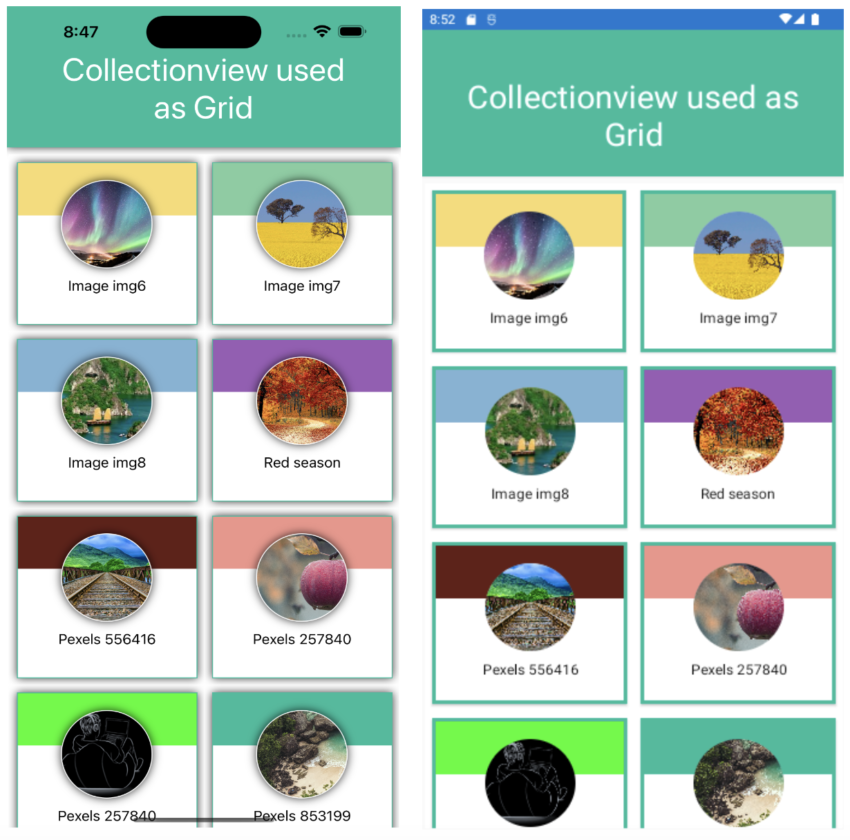
CollectionView allows us to display a list of items in either Vertical or Horizontal or Grid. CollectionView is similar to ListView in Xamarin Forms. But this is better than ListView in terms of Performance and Memory Management. You can learn more about CollectionView here.
So In this article, I’m going to show you how to use CollectionView as a GridItemLayout.
Let’s Start
1 – Setting up the UI
1.1 – Create a MainPage.xaml
<?xml version="1.0" encoding="utf-8" ?>
<ContentPage xmlns="http://xamarin.com/schemas/2014/forms"
             xmlns:x="http://schemas.microsoft.com/winfx/2009/xaml"
             xmlns:ffimageloading="clr-namespace:FFImageLoading.Forms;assembly=FFImageLoading.Forms"
             x:Class="XFCollectionViewUsedAsGrid.MainPage">

    <StackLayout>
        <Frame BackgroundColor="{StaticResource ColorPrimary}" Padding="24,50,24,24" CornerRadius="0">
            <Label Text="Collectionview used as Grid" HorizontalTextAlignment="Center" TextColor="White" FontSize="36"/>
        </Frame>

        <CollectionView
                x:Name="BannerList"
                Margin="2"
                ItemSizingStrategy="MeasureFirstItem"
                SelectionMode="None"
                VerticalOptions="FillAndExpand">

                <!--  Item Template  -->
                <CollectionView.ItemTemplate>

                    <DataTemplate>
                         <StackLayout
                            BackgroundColor="White"
                            HorizontalOptions="FillAndExpand"
                            IsClippedToBounds="True"
                            Spacing="8"
                             HeightRequest="200"
                            VerticalOptions="FillAndExpand">

                              <Frame
                                    x:Name="FrameContainer"
                                    Margin="8"
                                    Padding="0,0,0,0"
                                    BackgroundColor="{StaticResource ColorWhite}"
                                    BorderColor="{StaticResource ColorPrimary}"
                                    CornerRadius="0"
                                    HasShadow="True"
                                    IsClippedToBounds="True"
                                    HorizontalOptions="FillAndExpand"
                                    VerticalOptions="FillAndExpand">

                                    <StackLayout
                                        HorizontalOptions="FillAndExpand"
                                        IsClippedToBounds="True"
                                        Orientation="Vertical"
                                        Spacing="0"
                                        VerticalOptions="FillAndExpand">

                                        <BoxView
                                            BackgroundColor="{Binding HeaderColor}"
                                            HeightRequest="60"
                                            Margin="{OnPlatform Android='3,3,5,0', iOS='0,0,0,0'}"
                                            HorizontalOptions="Fill" />

                                        <!--  Banner Image  -->
                                        <Frame
                                            Margin="0,-40,0,0"
                                            Padding="0"
                                            BackgroundColor="Transparent"
                                            BorderColor="{StaticResource ColorWhite}"
                                            CornerRadius="50"
                                            HasShadow="True"
                                            HeightRequest="100"
                                            HorizontalOptions="CenterAndExpand"
                                            IsClippedToBounds="True"
                                            VerticalOptions="Start"
                                            WidthRequest="100">


                                            <Grid>

                                                <ffimageloading:CachedImage
                                                    x:Name="BannerImage"
                                                    Aspect="AspectFill"
                                                    CacheType="All"
                                                    CacheDuration="10"
                                                    DownsampleToViewSize="True"
                                                    HeightRequest="99"
                                                    IsVisible="{Binding IsLoading}"
                                                    Source="{Binding ImageUrl}"
                                                    WidthRequest="99"/>

                                                <ActivityIndicator
                                                    BindingContext="{x:Reference Name=BannerImage}"
                                                    HeightRequest="30"
                                                    HorizontalOptions="CenterAndExpand"
                                                    IsRunning="True"
                                                    IsVisible="{Binding IsLoading}"
                                                    VerticalOptions="CenterAndExpand"
                                                    WidthRequest="30"
                                                    Color="{StaticResource ColorPrimary}" />

                                            </Grid>

                                        </Frame>

                                        <StackLayout Margin="0,10,0,0">

                                            <Label
                                                FontSize="16"
                                                HorizontalTextAlignment="Center"
                                                Text="{Binding ImageName}"
                                                TextColor="{StaticResource ColorBlack}" />

                                        </StackLayout>

                                    </StackLayout>

                               </Frame>

                         </StackLayout>
                    </DataTemplate>

                </CollectionView.ItemTemplate>

            </CollectionView>

    </StackLayout>

</ContentPage>
- We need to set CollectionView item layout as GridItemsLayout so that item will appear in grid form so use below code in constructor of MainPage.xaml.cs.
- By default GridItemsLayout Orientation is set to ‘Vertical’ and Span is set to ‘1’ it means item will appear vertically in a single column.
1.2 – Setting up the ItemsLayout and ItemsSource for CollectionView
Device.BeginInvokeOnMainThread(() =>
{
     BannerList.ItemsLayout = new GridItemsLayout(2, ItemsLayoutOrientation.Vertical);
     BannerList.ItemsSource = ImageList;
});
- Here we are setting Orientation as ‘Vertical’ and Span as ‘2’ it means item will appear vertically in two columns.
2 – Create a GetImageList() method inside MainPage.xaml.cs
public ObservableCollection<BannerImage> GetImageList()
{
            ImageList = new ObservableCollection<BannerImage>();

            ImageList.Add(new BannerImage()
            {
                HeaderColor = Color.FromHex("#F7DC6F"),
                ImageName = "Image img6",
                ImageUrl = ImageSource.FromFile("img6.jpg")
            });

            ImageList.Add(new BannerImage()
            {
                HeaderColor = Color.FromHex("#7DCEA0"),
                ImageName = "Image img7",
                ImageUrl = ImageSource.FromFile("img7.jpg")
            });

            ImageList.Add(new BannerImage()
            {
                HeaderColor = Color.FromHex("#7FB3D5"),
                ImageName = "Image img8",
                ImageUrl = ImageSource.FromFile("img8.jpeg")
            });

            ImageList.Add(new BannerImage()
            {
                HeaderColor = Color.FromHex("#9B59B6"),
                ImageName = "Red season",
                ImageUrl = ImageSource.FromUri(new Uri("https://images.pexels.com/photos/33109/fall-autumn-red-season.jpg?cs=srgb&dl=autumn-colorful-colourful-33109.jpg&fm=jpg"))
            });

            ImageList.Add(new BannerImage()
            {
                HeaderColor = Color.FromHex("#641E16"),
                ImageName = "Pexels 556416",
                ImageUrl = ImageSource.FromUri(new Uri("https://images.pexels.com/photos/556416/pexels-photo-556416.jpeg?cs=srgb&dl=bridge-clouds-cloudy-556416.jpg&fm=jpg"))
            });

            ImageList.Add(new BannerImage()
            {
                HeaderColor = Color.FromHex("#F1948A"),
                ImageName = "Pexels 257840",
                ImageUrl = ImageSource.FromUri(new Uri("https://images.pexels.com/photos/257840/pexels-photo-257840.jpeg?cs=srgb&dl=agriculture-apple-blur-257840.jpg&fm=jpg"))
            });

            ImageList.Add(new BannerImage()
            {
                HeaderColor = Color.FromHex("#00FF00"),
                ImageName = "Pexels 257840",
                ImageUrl = ImageSource.FromFile("gif4.gif")
            });

            ImageList.Add(new BannerImage()
            {
                HeaderColor = Color.FromHex("#1ABC9C"),
                ImageName = "Pexels 853199",
                ImageUrl = ImageSource.FromUri(new Uri("https://images.pexels.com/photos/853199/pexels-photo-853199.jpeg?cs=srgb&dl=4k-wallpaper-background-beautiful-853199.jpg&fm=jpg"))
            });

            ImageList.Add(new BannerImage()
            {
                HeaderColor = Color.FromHex("#1B4F72"),
                ImageName = "Pexels 462118",
                ImageUrl = ImageSource.FromUri(new Uri("https://images.pexels.com/photos/462118/pexels-photo-462118.jpeg?cs=srgb&dl=bloom-blooming-blossom-462118.jpg&fm=jpg"))
            });

            ImageList.Add(new BannerImage()
            {
                HeaderColor = Color.FromHex("#F0048A"),
                ImageName = "Pexels 257840",
                ImageUrl = ImageSource.FromFile("gif5.gif")
            });

            ImageList.Add(new BannerImage()
            {
                HeaderColor = Color.FromHex("#6E2C00"),
                ImageName = "Waterfall thac",
                ImageUrl = ImageSource.FromUri(new Uri("https://images.pexels.com/photos/68147/waterfall-thac-dray-nur-buon-me-thuot-daklak-68147.jpeg?cs=srgb&dl=hd-wallpaper-landscape-long-exposure-68147.jpg&fm=jpg"))
            });

            ImageList.Add(new BannerImage()
            {
                HeaderColor = Color.FromHex("#F4D03F"),
                ImageName = "Pexels 753626",
                ImageUrl = ImageSource.FromUri(new Uri("https://images.pexels.com/photos/753626/pexels-photo-753626.jpeg?cs=srgb&dl=beach-bora-bora-clouds-753626.jpg&fm=jpg"))
            });

            ImageList.Add(new BannerImage()
            {
                HeaderColor = Color.FromHex("#5B2C6F"),
                ImageName = "Pexels 1402787",
                ImageUrl = ImageSource.FromUri(new Uri("https://images.pexels.com/photos/1402787/pexels-photo-1402787.jpeg?cs=srgb&dl=4k-wallpaper-audi-audi-r8-1402787.jpg&fm=jpg"))
            });

            ImageList.Add(new BannerImage()
            {
                HeaderColor = Color.FromHex("#0E6655"),
                ImageName = "Rose blue flower",
                ImageUrl = ImageSource.FromUri(new Uri("https://images.pexels.com/photos/67636/rose-blue-flower-rose-blooms-67636.jpeg?cs=srgb&dl=beauty-bloom-blue-67636.jpg&fm=jpg"))
            });

            ImageList.Add(new BannerImage()
            {
                HeaderColor = Color.FromHex("#B7950B"),
                ImageName = "Pexels 443446",
                ImageUrl = ImageSource.FromUri(new Uri("https://images.pexels.com/photos/443446/pexels-photo-443446.jpeg?cs=srgb&dl=daylight-forest-glossy-443446.jpg&fm=jpg"))
            });

            ImageList.Add(new BannerImage()
            {
                HeaderColor = Color.FromHex("#D7DBDD"),
                ImageName = "Image img5",
                ImageUrl = ImageSource.FromFile("img5.jpeg")
            });

            ImageList.Add(new BannerImage()
            {
                HeaderColor = Color.FromHex("#C39BD3"),
                ImageName = "Image img9",
                ImageUrl = ImageSource.FromFile("img9.jpeg")
            });

            return ImageList;
}
3 – Create a BannerImage.cs Model
using System;
using Xamarin.Forms;

namespace XFCollectionViewUsedAsGrid
{
    public class BannerImage
    {
        public ImageSource ImageUrl { get; set; }
        public string ImageName { get; set; }
        public string ImageDesc { get; set; } = "Lorem Ipsum is simply dummy text of the printing and typesetting industry.";
        public bool IsSquareView { get; set; }
        public Color HeaderColor { get; set; }
    }
}
- Now, We need to call the above GetImageList() method from the constructor of MainPage.xaml.cs.
public MainPage()
{
    InitializeComponent();
    GetImageList();

    Device.BeginInvokeOnMainThread(() =>
    {
         BannerList.ItemsLayout = new GridItemsLayout(2, ItemsLayoutOrientation.Vertical);
         BannerList.ItemsSource = ImageList;
    });
}
4 – Result
That’s all for now!
You can check the full source code here.
Happy Coding! 😀
You may also like
How to use Expander in MAUI
How to use StateContainer in MAUI
Great post, you have pointed out some fantastic details , I besides think this s a very superb website.