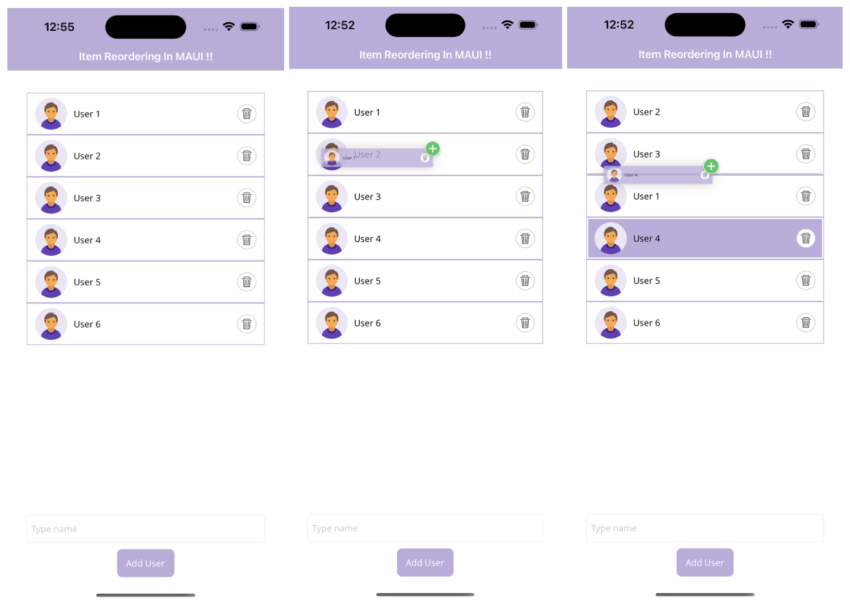
MAUI provides us drag and drop gestures which enables drag an element from one place and drop to another place. We can apply drag and drop gestures to any UI elements using DragGestureRecognizer and DropGestureRecognizer class. So In this article, I’m going to show you how to use drag and drop gesture to CollectionView in MAUI.
| Note : To implement drag and drop in iOS platform minimum iOS version 11 required. |
Let’s Start
1 – Setting up the UI
1.1 – Create a MainPage.xaml
<?xml version="1.0" encoding="utf-8" ?>
<ContentPage
    x:Class="MAUIDragDropCollectionViewItemsDemo.MainPage"
    xmlns="http://schemas.microsoft.com/dotnet/2021/maui"
    xmlns:x="http://schemas.microsoft.com/winfx/2009/xaml"
    xmlns:converter="clr-namespace:MAUIDragDropCollectionViewItemsDemo"
    x:Name="MainPageContainer">

    <ContentPage.Resources>
        <ResourceDictionary>
            <converter:BoolToColorConverter x:Key="BoolToColor" />
        </ResourceDictionary>
    </ContentPage.Resources>

    <Grid
        Padding="30,5"
        HorizontalOptions="Fill"
        RowDefinitions="*,Auto"
        RowSpacing="10"
        VerticalOptions="Fill">

        <CollectionView
            Grid.Row="0"
            Margin="0,30,0,0"
            ItemsSource="{Binding UserList}"
            SelectionMode="None">
            <CollectionView.ItemTemplate>
                <DataTemplate>
                    <Frame
                        Padding="3"
                        BorderColor="{StaticResource Primary}"
                        CornerRadius="0"
                        IsClippedToBounds="True">
                        <VerticalStackLayout>
                            <StackLayout
                                Padding="10"
                                BackgroundColor="{Binding IsBeingDragged, Converter={StaticResource BoolToColor}}"
                                HeightRequest="60"
                                HorizontalOptions="FillAndExpand"
                                Orientation="Horizontal"
                                VerticalOptions="FillAndExpand">

                                <!--  User Image  -->
                                <Image
                                    HeightRequest="50"
                                    Source="user.png"
                                    WidthRequest="50">
                                    <Image.Clip>
                                        <EllipseGeometry
                                            Center="50,50"
                                            RadiusX="100"
                                            RadiusY="100" />
                                    </Image.Clip>
                                </Image>

                                <!--  User Name  -->
                                <Label
                                    x:Name="UserName"
                                    Margin="10,0,0,0"
                                    HorizontalOptions="FillAndExpand"
                                    Text="{Binding UserName}"
                                    TextColor="Black"
                                    VerticalTextAlignment="Center" />

                                <!--  Delete Icon  -->
                                <Frame
                                    Padding="7"
                                    CornerRadius="15"
                                    HeightRequest="30"
                                    HorizontalOptions="EndAndExpand"
                                    WidthRequest="30">
                                    <Image Source="delete_user.png" />
                                    <Frame.GestureRecognizers>
                                        <TapGestureRecognizer Command="{Binding BindingContext.DeleteUserCommand, Source={x:Reference MainPageContainer}}" CommandParameter="{Binding .}" />
                                    </Frame.GestureRecognizers>
                                </Frame>

                                <StackLayout.GestureRecognizers>
                                    <DragGestureRecognizer
                                        CanDrag="True"
                                        DragStartingCommand="{Binding BindingContext.ItemDraggedCommand, Source={x:Reference MainPageContainer}}"
                                        DragStartingCommandParameter="{Binding}" />
                                    <DropGestureRecognizer
                                        AllowDrop="True"
                                        DragLeaveCommand="{Binding BindingContext.ItemDragLeaveCommand, Source={x:Reference MainPageContainer}}"
                                        DragLeaveCommandParameter="{Binding}"
                                        DragOverCommand="{Binding BindingContext.ItemDraggedOverCommand, Source={x:Reference MainPageContainer}}"
                                        DragOverCommandParameter="{Binding}"
                                        DropCommand="{Binding BindingContext.ItemDroppedCommand, Source={x:Reference MainPageContainer}}"
                                        DropCommandParameter="{Binding}" />
                                </StackLayout.GestureRecognizers>
                            </StackLayout>

                            <StackLayout
                                BackgroundColor="LightGray"
                                HeightRequest="30"
                                HorizontalOptions="FillAndExpand"
                                IsVisible="{Binding IsBeingDraggedOver}"
                                VerticalOptions="FillAndExpand" />
                        </VerticalStackLayout>
                    </Frame>
                </DataTemplate>
            </CollectionView.ItemTemplate>
        </CollectionView>

        <VerticalStackLayout Grid.Row="1">

            <Entry Placeholder="Type name" Text="{Binding User}" />

            <Button
                Margin="0,10,0,0"
                Command="{Binding AddUserCommand}"
                HorizontalOptions="CenterAndExpand"
                Text="Add User" />

        </VerticalStackLayout>

    </Grid>

</ContentPage>
- As in the above MainPage.xaml, I have taken CollectionView to show list of user and Entry/Button to add new user.
- BoolToColorConverter is used for changing the color based on bool value passed at runtime.
- And I have also used DragGestureRecognizer and DropGestureRecognizer gestures to collectionview item.
- DragStartingCommand – It’s a command which gets executed while dragging start.
- DragStartingCommandParameter – It’s an object type which passed to DragStartingCommand.
- DragLeaveCommand – It’s also a command which gets executed while an element is dragged out of the control’s bounds.
- DragLeaveCommandParameter – It’s an object type which passed to DragLeaveCommand.
- DragOverCommand – It’s also a command which gets executed while an element is dragged over the control’s bounds.
- DragOverCommandParameter – It’s an object type which passed to DragOverCommand.
- DropCommand – It’s also a command which gets executed while an element is dropped over the target control.
- DropCommandParameter – It’s an object type which passed to DropCommand.
1.2 – Create a BoolToColorConverter.cs
using System.Globalization;

namespace MAUIDragDropCollectionViewItemsDemo
{
    public class BoolToColorConverter : IValueConverter
    {
        public object Convert(object value, Type targetType, object parameter, CultureInfo culture)
        {
            var isBeingDragged = (bool?)value;
            var result = (isBeingDragged ?? false) ? Color.FromArgb("#bcacdc") : Color.FromArgb("#FFFFFF");
            return result;
        }

        public object ConvertBack(object value, Type targetType, object parameter, CultureInfo culture)
        {
            return value;
        }
    }
}
2 – Setting up the ViewModel
using CommunityToolkit.Mvvm.ComponentModel;
using CommunityToolkit.Mvvm.Input;
using System.Collections.ObjectModel;
using System.Diagnostics;

namespace MAUIDragDropCollectionViewItemsDemo
{
    public partial class MainPageViewModel : ObservableObject
    {
        [ObservableProperty]
        private ObservableCollection<User> userList;

        [ObservableProperty]
        private string user;

        private User _itemBeingDragged;

        public MainPageViewModel()
        {
            GetUserList();
        }

        [RelayCommand]
        public void AddUser()
        {
            Application.Current.Dispatcher.Dispatch(() =>
            {
                if (!string.IsNullOrEmpty(User))
                {
                    UserList.Add(new User() { UserName = User });
                    User = string.Empty;
                }
            });
        }

        [RelayCommand]
        public void DeleteUser(User user)
        {
            Application.Current.Dispatcher.Dispatch(() =>
            {
                if (UserList.Contains(user))
                {
                    UserList.Remove(user);
                }
            });
        }

        [RelayCommand]
        public void ItemDragged(User user)
        {
            Debug.WriteLine($"ItemDragged : {user?.UserName}");

            user.IsBeingDragged = true;
            _itemBeingDragged = user;
        }

        [RelayCommand]
        public void ItemDragLeave(User user)
        {
            Debug.WriteLine($"ItemDragLeave : {user?.UserName}");

            user.IsBeingDraggedOver = false;
        }

        [RelayCommand]
        public void ItemDraggedOver(User user)
        {
            Debug.WriteLine($"ItemDraggedOver : {user?.UserName}");

            if (user == _itemBeingDragged)
            {
                user.IsBeingDragged = false;
            }
            user.IsBeingDraggedOver = user != _itemBeingDragged;
        }

        [RelayCommand]
        public void ItemDropped(User user)
        {
            try
            {
                var itemToMove = _itemBeingDragged;
                var itemToInsertBefore = user;

                if (itemToMove == null || itemToInsertBefore == null || itemToMove == itemToInsertBefore)
                    return;

                int insertAtIndex = UserList.IndexOf(itemToInsertBefore);

                if (insertAtIndex >= 0 && insertAtIndex < UserList.Count)
                {
                    UserList.Remove(itemToMove);
                    UserList.Insert(insertAtIndex, itemToMove);

                    itemToMove.IsBeingDragged = false;
                    itemToInsertBefore.IsBeingDraggedOver = false;
                }

                Debug.WriteLine($"ItemDropped: [{itemToMove?.UserName}] => [{itemToInsertBefore?.UserName}], target index = [{insertAtIndex}]");
            }
            catch (Exception ex)
            {
                Debug.WriteLine(ex.Message);
            }
        }

        private void GetUserList()
        {
            UserList = new ObservableCollection<User>()
            {
                new User(){UserName = "User 1"},
                new User(){UserName = "User 2"},
                new User(){UserName = "User 3"},
                new User(){UserName = "User 4"},
                new User(){UserName = "User 5"},
                new User(){UserName = "User 6"},
            };
        }
    }

    public partial class User : ObservableObject
    {
        [ObservableProperty]
        private string userName;

        [ObservableProperty]
        private bool isBeingDragged;

        [ObservableProperty]
        private bool isBeingDraggedOver;
    }
}
- As you will see I have used the ObservableObject class for data binding and I already explained about this in my last article. You can visit this link for more details.
Result
That’s all for now!
You can check the full source code here.
Happy Coding! 😀
You may also like
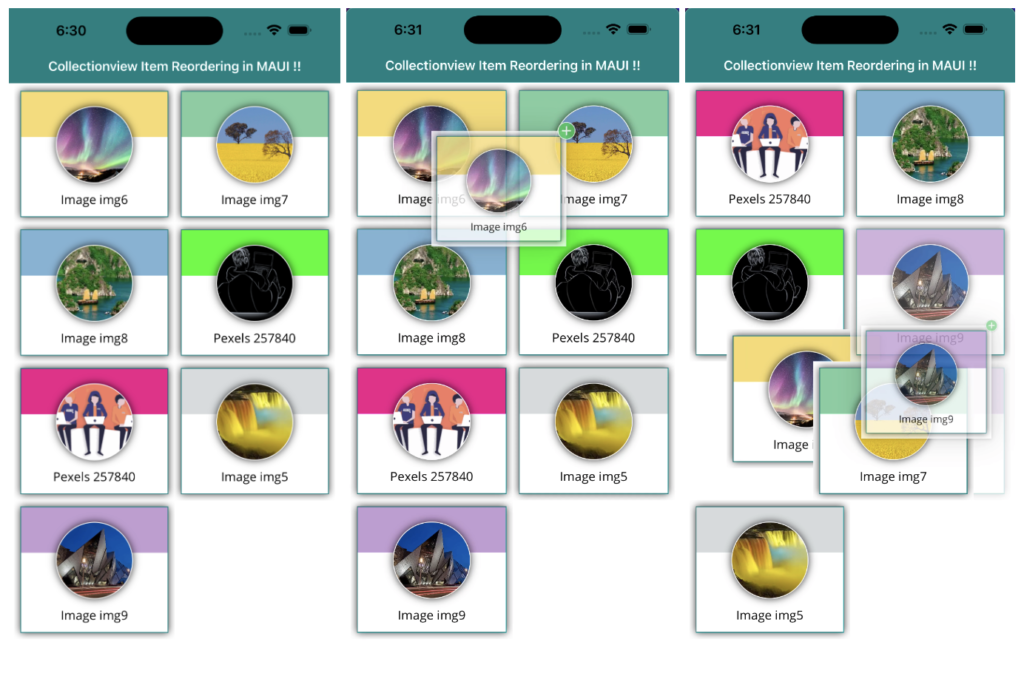
How to apply item reordering to CollectionView GridItemsLayout in MAUI
How to use ObservableObject in MAUI for Data Binding
Great and pretty straightforward tutorial, thanks!
Thanks very much!