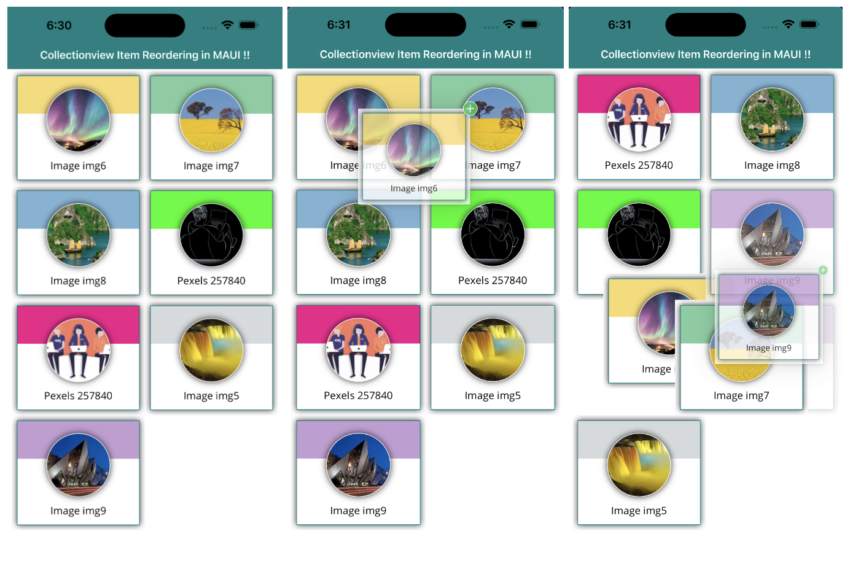
Drag and Drop gestures enable drag an element from one place and drop to another place. We can apply drag and drop gestures to any UI elements using DragGestureRecognizer and DropGestureRecognizer class. In my last post I explained how to apply drag and drop gestures to CollectionView LinearItemsLayout click here to see. So In this article, I’m going to show you how to apply Item reordering to CollectionView GridItemsLayout in MAUI.
| Note : To implement drag and drop in iOS platform minimum iOS version 11 required. |
Let’s Start
1 – Setting up the UI
1.1 – Create a MainPage.xaml
<?xml version="1.0" encoding="utf-8" ?>
<ContentPage
    x:Class="MAUICollectionViewItemReorderingSample.MainPage"
    xmlns="http://schemas.microsoft.com/dotnet/2021/maui"
    xmlns:x="http://schemas.microsoft.com/winfx/2009/xaml"
    xmlns:vm="clr-namespace:MAUICollectionViewItemReorderingSample"
    x:Name="MainPageContainer">

    <ContentPage.BindingContext>
        <vm:MainPageViewModel />
    </ContentPage.BindingContext>

    <ScrollView>
        <VerticalStackLayout
            Padding="5,0"
            Spacing="15"
            VerticalOptions="FillAndExpand">

            <CollectionView
                Margin="2"
                CanReorderItems="True"
                ItemsSource="{Binding ImageList}"
                SelectionMode="None"
                VerticalOptions="FillAndExpand">

                <!--  Item Layout  -->
                <CollectionView.ItemsLayout>
                    <GridItemsLayout Orientation="Vertical" Span="2" />
                </CollectionView.ItemsLayout>

                <!--  Item Template  -->
                <CollectionView.ItemTemplate>
                    <DataTemplate>
                        <StackLayout
                            BackgroundColor="White"
                            HeightRequest="180"
                            HorizontalOptions="FillAndExpand"
                            IsClippedToBounds="True"
                            Spacing="8"
                            VerticalOptions="FillAndExpand">

                            <Frame
                                x:Name="FrameContainer"
                                Margin="8"
                                Padding="0,0,0,0"
                                BackgroundColor="White"
                                BorderColor="{StaticResource Primary}"
                                CornerRadius="0"
                                HasShadow="True"
                                HorizontalOptions="FillAndExpand"
                                IsClippedToBounds="True"
                                VerticalOptions="FillAndExpand">
                                <StackLayout
                                    HorizontalOptions="FillAndExpand"
                                    IsClippedToBounds="True"
                                    Orientation="Vertical"
                                    Spacing="0"
                                    VerticalOptions="FillAndExpand">

                                    <StackLayout
                                        Margin="{OnPlatform Android='3,3,5,0',
                                                            iOS='0,0,0,0'}"
                                        BackgroundColor="{Binding HeaderColor}"
                                        HeightRequest="60"
                                        HorizontalOptions="Fill" />

                                    <!--  Banner Image  -->
                                    <Frame
                                        Margin="0,-40,0,0"
                                        Padding="0"
                                        BackgroundColor="Transparent"
                                        BorderColor="White"
                                        CornerRadius="50"
                                        HasShadow="True"
                                        HeightRequest="100"
                                        HorizontalOptions="CenterAndExpand"
                                        IsClippedToBounds="True"
                                        VerticalOptions="Start"
                                        WidthRequest="100">
                                        <Image
                                            x:Name="BannerImage"
                                            Aspect="AspectFill"
                                            HeightRequest="99"
                                            IsAnimationPlaying="True"
                                            Source="{Binding ImageUrl}"
                                            WidthRequest="99" />
                                    </Frame>

                                    <StackLayout Margin="0,10,0,0">
                                        <Label
                                            FontSize="16"
                                            HorizontalTextAlignment="Center"
                                            Text="{Binding ImageName}"
                                            TextColor="Black" />
                                    </StackLayout>
                                </StackLayout>
                            </Frame>

                            <StackLayout.GestureRecognizers>
                                <DragGestureRecognizer
                                    CanDrag="True"
                                    DragStartingCommand="{Binding BindingContext.ItemDraggedCommand, Source={x:Reference MainPageContainer}}"
                                    DragStartingCommandParameter="{Binding}" />
                                <DropGestureRecognizer
                                    AllowDrop="True"
                                    DragOverCommand="{Binding BindingContext.ItemDraggedOverCommand, Source={x:Reference MainPageContainer}}"
                                    DragOverCommandParameter="{Binding}" />
                            </StackLayout.GestureRecognizers>

                        </StackLayout>
                    </DataTemplate>
                </CollectionView.ItemTemplate>
            </CollectionView>
        </VerticalStackLayout>
    </ScrollView>
</ContentPage>
- As in the above MainPage.xaml, I have taken CollectionView GridItemsLayout to show banners.
- DragStartingCommand – It’s a command which gets executed while dragging start.
- DragStartingCommandParameter – It’s an object type which passed to DragStartingCommand.
- DragOverCommand – It’s also a command which gets executed while an element is dragged over the control’s bounds.
- DragOverCommandParameter – It’s an object type which passed to DragOverCommand.
2 – Setting up the ViewModel
using CommunityToolkit.Mvvm.ComponentModel;
using CommunityToolkit.Mvvm.Input;
using System.Collections.ObjectModel;
using System.Diagnostics;

namespace MAUICollectionViewItemReorderingSample
{
    public partial class MainPageViewModel : ObservableObject
    {
        [ObservableProperty]
        ObservableCollection<BannerImage> imageList;

        private BannerImage _itemBeingDragged;

        public MainPageViewModel()
        {
            GetImageList();
        }

        [RelayCommand]
        public void ItemDragged(BannerImage user)
        {
            Debug.WriteLine($"ItemDragged : {user?.ImageName}");

            _itemBeingDragged = user;
        }

        [RelayCommand]
        public void ItemDraggedOver(BannerImage user)
        {
            Debug.WriteLine($"ItemDraggedOver : {user?.ImageName}");

            try
            {
                var itemToMove = _itemBeingDragged;
                var itemToInsertBefore = user;

                if (itemToMove == null || itemToInsertBefore == null || itemToMove == itemToInsertBefore)
                    return;

                int insertAtIndex = ImageList.IndexOf(itemToInsertBefore);

                if (insertAtIndex >= 0 && insertAtIndex < ImageList.Count)
                {
                    ImageList.Remove(itemToMove);
                    ImageList.Insert(insertAtIndex, itemToMove);
                }

                Debug.WriteLine($"ItemDropped: [{itemToMove?.ImageName}] => [{itemToInsertBefore?.ImageName}], target index = [{insertAtIndex}]");
            }
            catch (Exception ex)
            {
                Debug.WriteLine(ex.Message);
            }
        }

        public void GetImageList()
        {
            ImageList = new ObservableCollection<BannerImage>();

            ImageList.Add(new BannerImage()
            {
                HeaderColor = Color.FromArgb("#F7DC6F"),
                ImageName = "Image img6",
                ImageUrl = ImageSource.FromFile("img6.jpg")
            });

            ImageList.Add(new BannerImage()
            {
                HeaderColor = Color.FromArgb("#7DCEA0"),
                ImageName = "Image img7",
                ImageUrl = ImageSource.FromFile("img7.jpg")
            });

            ImageList.Add(new BannerImage()
            {
                HeaderColor = Color.FromArgb("#7FB3D5"),
                ImageName = "Image img8",
                ImageUrl = ImageSource.FromFile("img8.jpeg")
            });

            ImageList.Add(new BannerImage()
            {
                HeaderColor = Color.FromArgb("#00FF00"),
                ImageName = "Pexels 257840",
                ImageUrl = ImageSource.FromFile("gif4.gif")
            });

            ImageList.Add(new BannerImage()
            {
                HeaderColor = Color.FromArgb("#F0048A"),
                ImageName = "Pexels 257840",
                ImageUrl = ImageSource.FromFile("gif5.gif")
            });

            ImageList.Add(new BannerImage()
            {
                HeaderColor = Color.FromArgb("#D7DBDD"),
                ImageName = "Image img5",
                ImageUrl = ImageSource.FromFile("img5.jpeg")
            });

            ImageList.Add(new BannerImage()
            {
                HeaderColor = Color.FromArgb("#C39BD3"),
                ImageName = "Image img9",
                ImageUrl = ImageSource.FromFile("img9.jpeg")
            });
        }
    }

    public partial class BannerImage : ObservableObject
    {
        [ObservableProperty]
        private ImageSource imageUrl;

        [ObservableProperty]
        private string imageName;

        [ObservableProperty]
        private string imageDesc = "Lorem Ipsum is simply dummy text of the printing and typesetting industry.";

        [ObservableProperty]
        private bool isSquareView;

        [ObservableProperty]
        private Color headerColor;
    }
}
- As you will see I have used the ObservableObject class for data binding and I already explained about this in my previous article. You can visit this link for more details.
Result
That’s all for now!
You can check the full source code here.
Happy Coding! 😀
You may also like
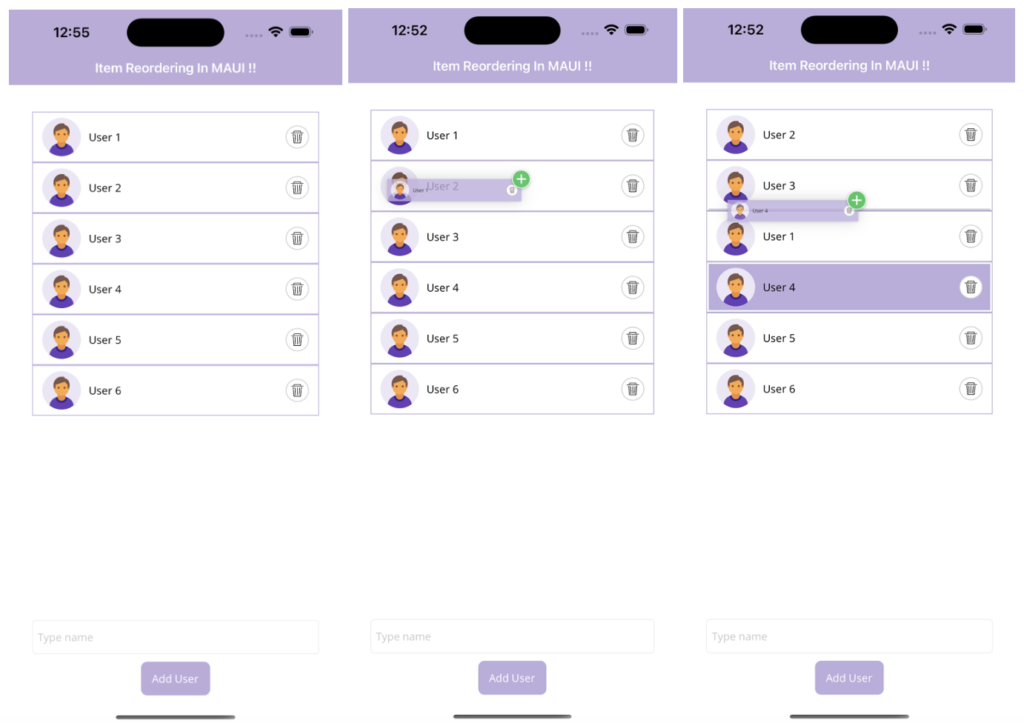
How to use drag and drop gesture to CollectionView in MAUI
How to use ObservableObject in MAUI for Data Binding
Thank you very much.
Hi Alamgeer and thank you for the nice example.
I changes my project to use the ScrollView exactly like you’ve suggested but now my SelectionChangedCommand from my CollectionView never fire.
I tried to add “” to the GestureRecognizers list. It works but the item must on the ItemViewModel and not on the ListOfItemsViewModel. How can we fire a list selection change event?
If you could be so kind to give me some light on this, I would really appreciate.
Thanks again Alamgeer,
Sincerely,
Tiago
It would be incredible if you could show the whole solution. As a new person who understands this very little, these do not help much. Thank you for your time!
Thanks Jon P for your comment, I have already provided solution link in end of this post.
That would be an amazing solution. It’s easy to comprehend. Thank you very much.